Views and Dashboard
The same work, the way you want to see it.
Switch between List, Board, Calendar and Timeline on a project, across all projects or on your own work. Open the Dashboard to see the firm, your week and what needs attention.
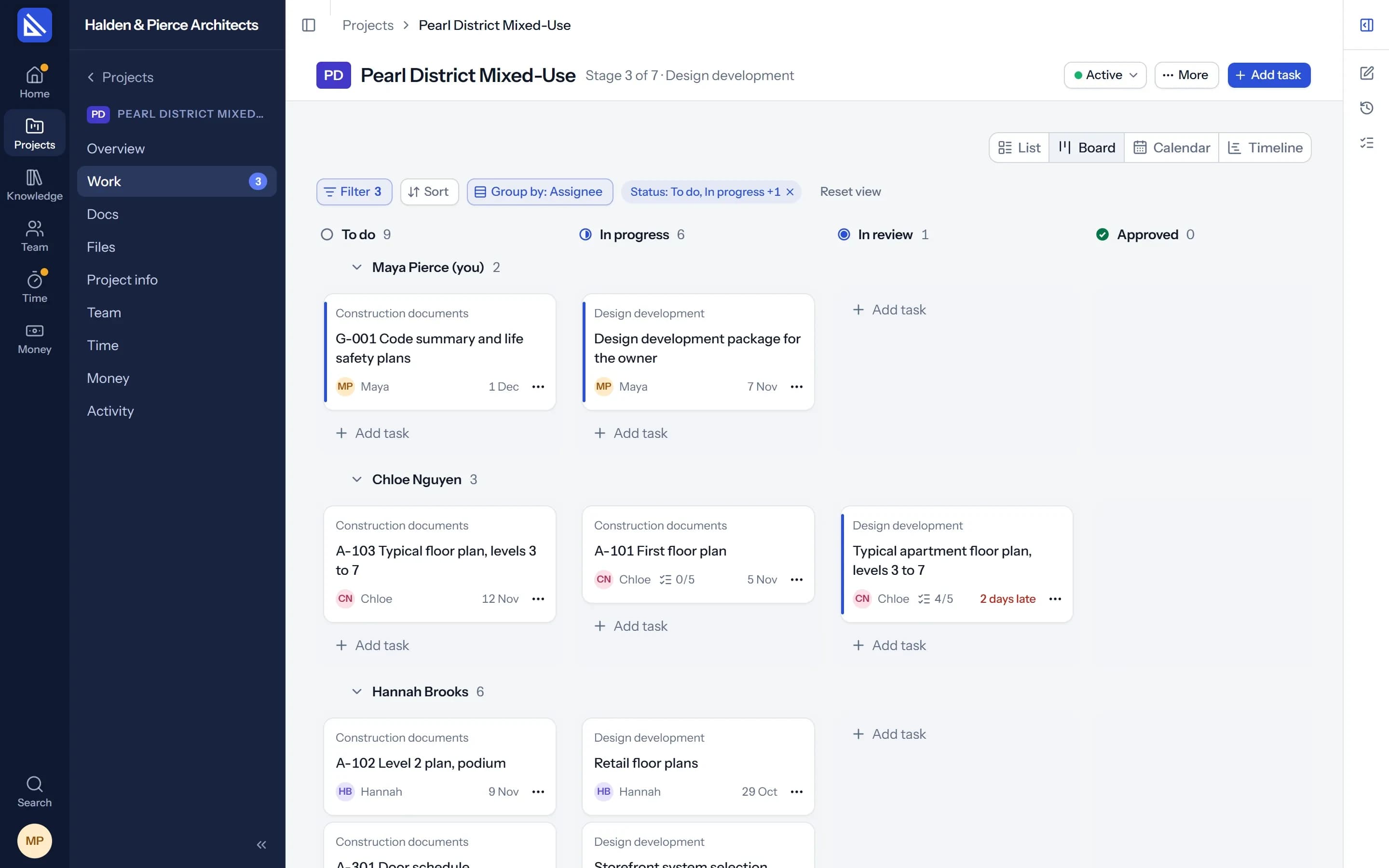
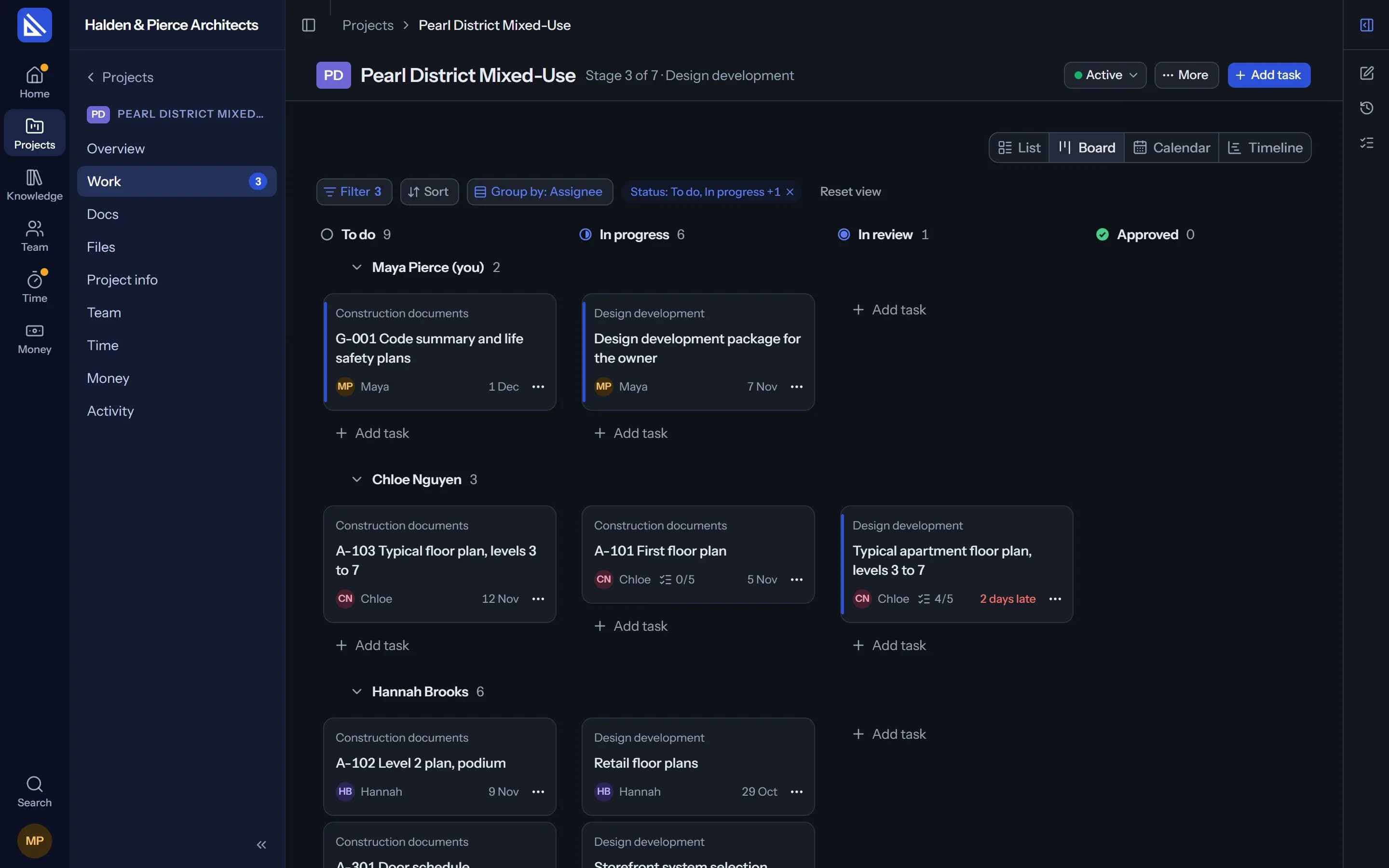
Four views
One switch, four ways to look.
List
Tasks by stage or by due date, with filters, sorting and grouping.
Board
Columns by status. Drag a card to move it on; dropping in Done asks for review.
Calendar
Tasks and key dates by month or by week. Drag to change a date.
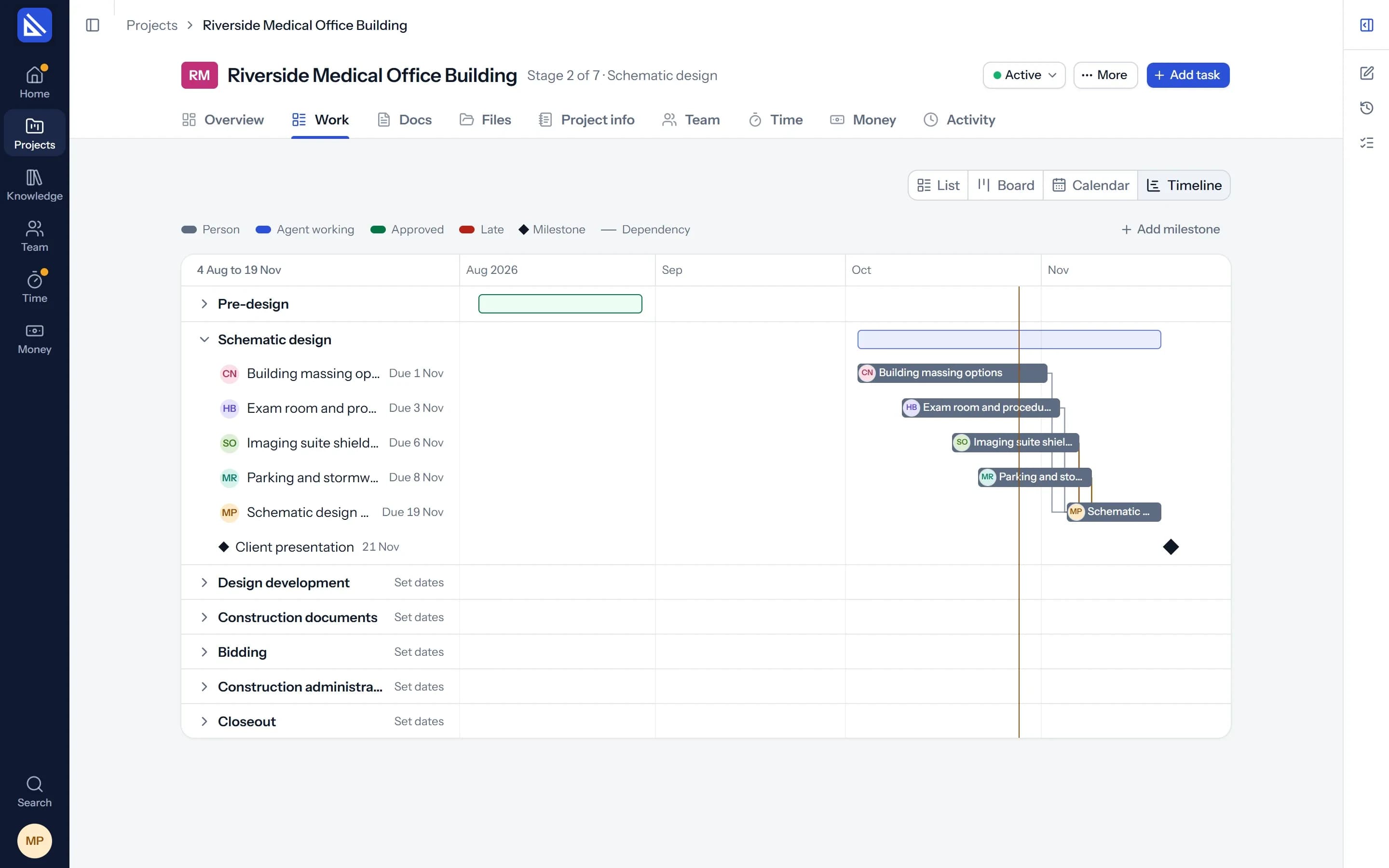
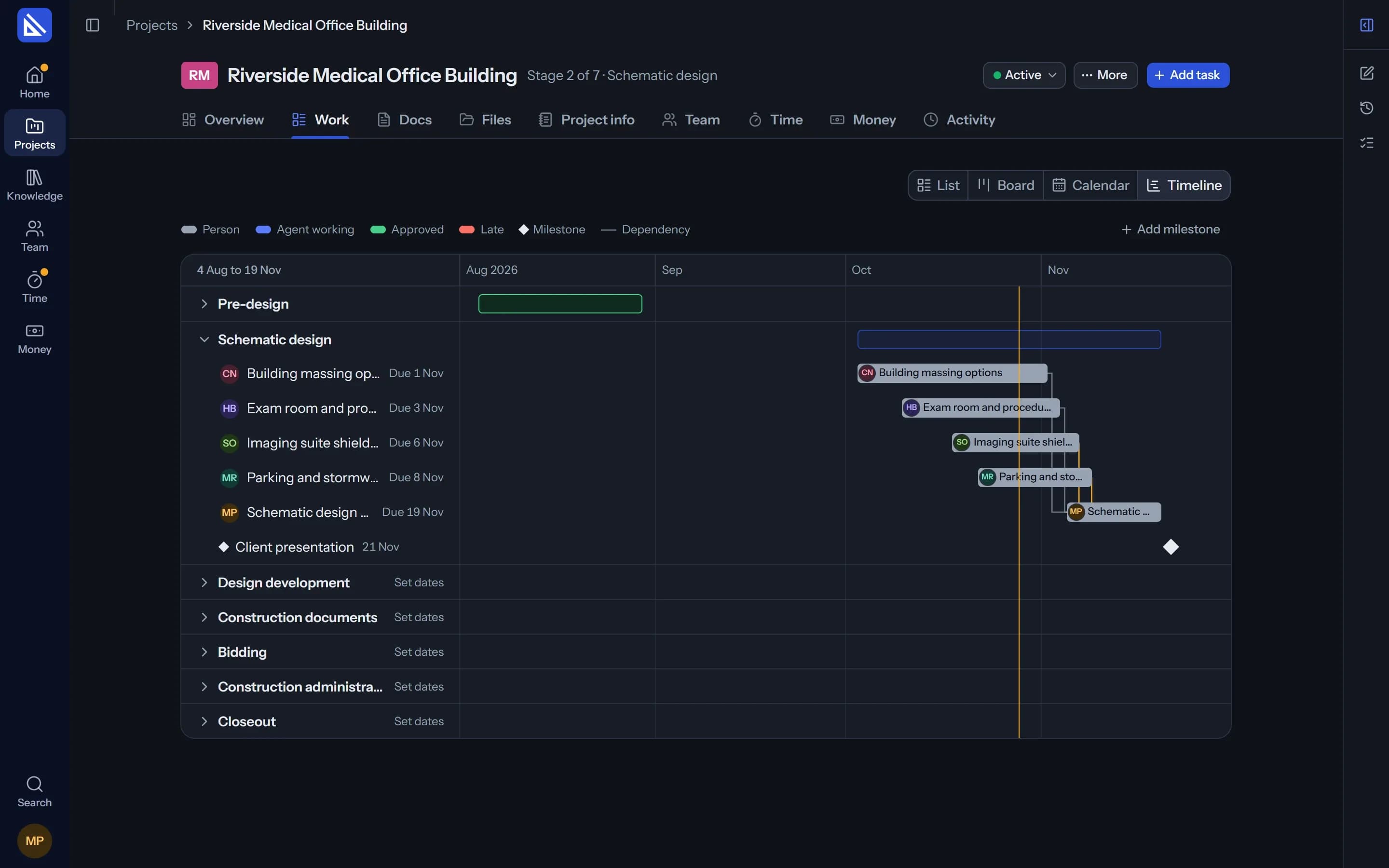
Timeline
Stages and tasks with what depends on what, and today's line.
Timeline
See the whole programme at once.
Stages, tasks and key dates on one timeline, with the lines between tasks that depend on each other. Drag a task or a stage, and what depends on it moves too, with Undo.
- Late is visible. “5 days late” wherever a task is listed.
- Every project. A timeline for one project, and one for all of them.
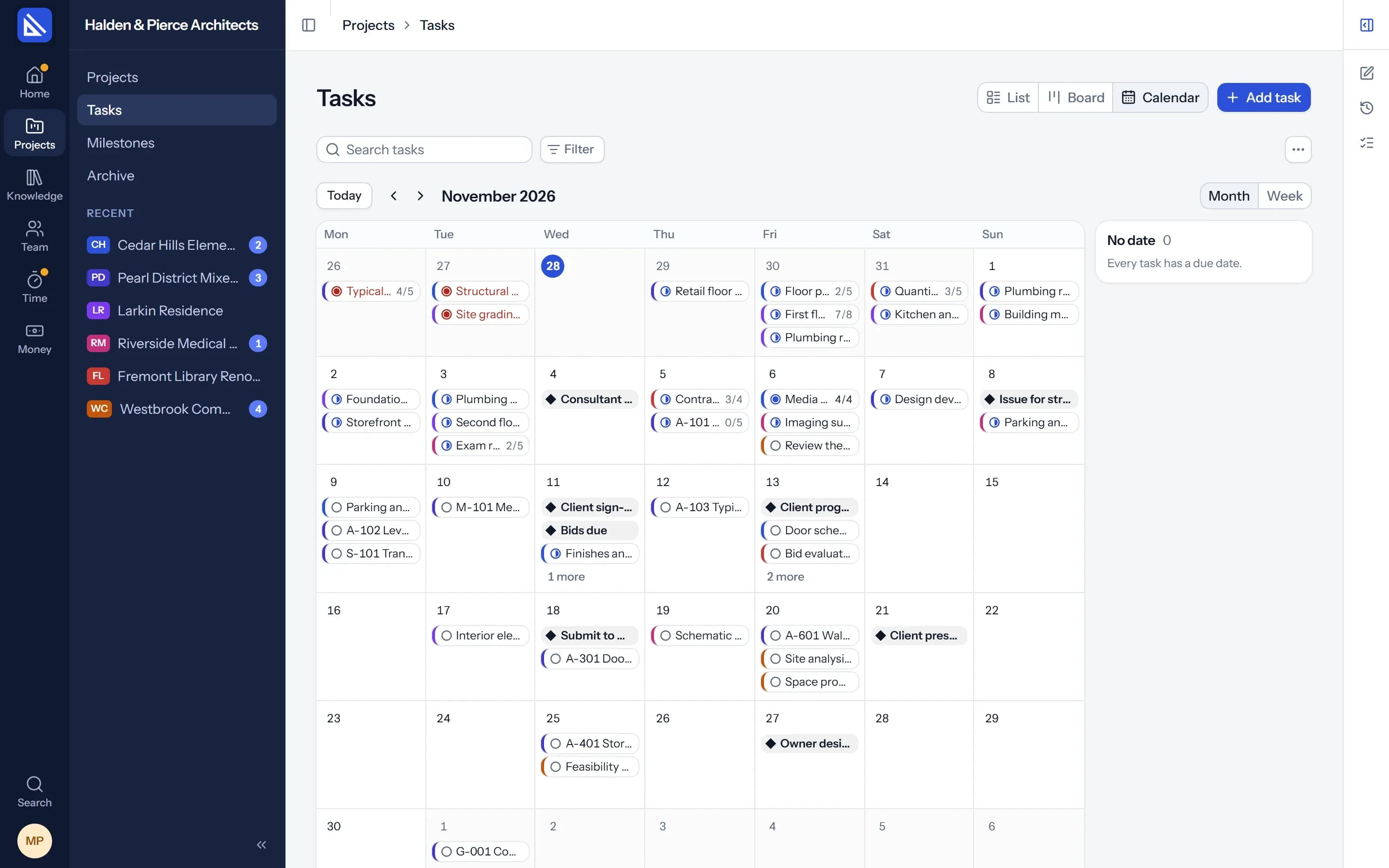
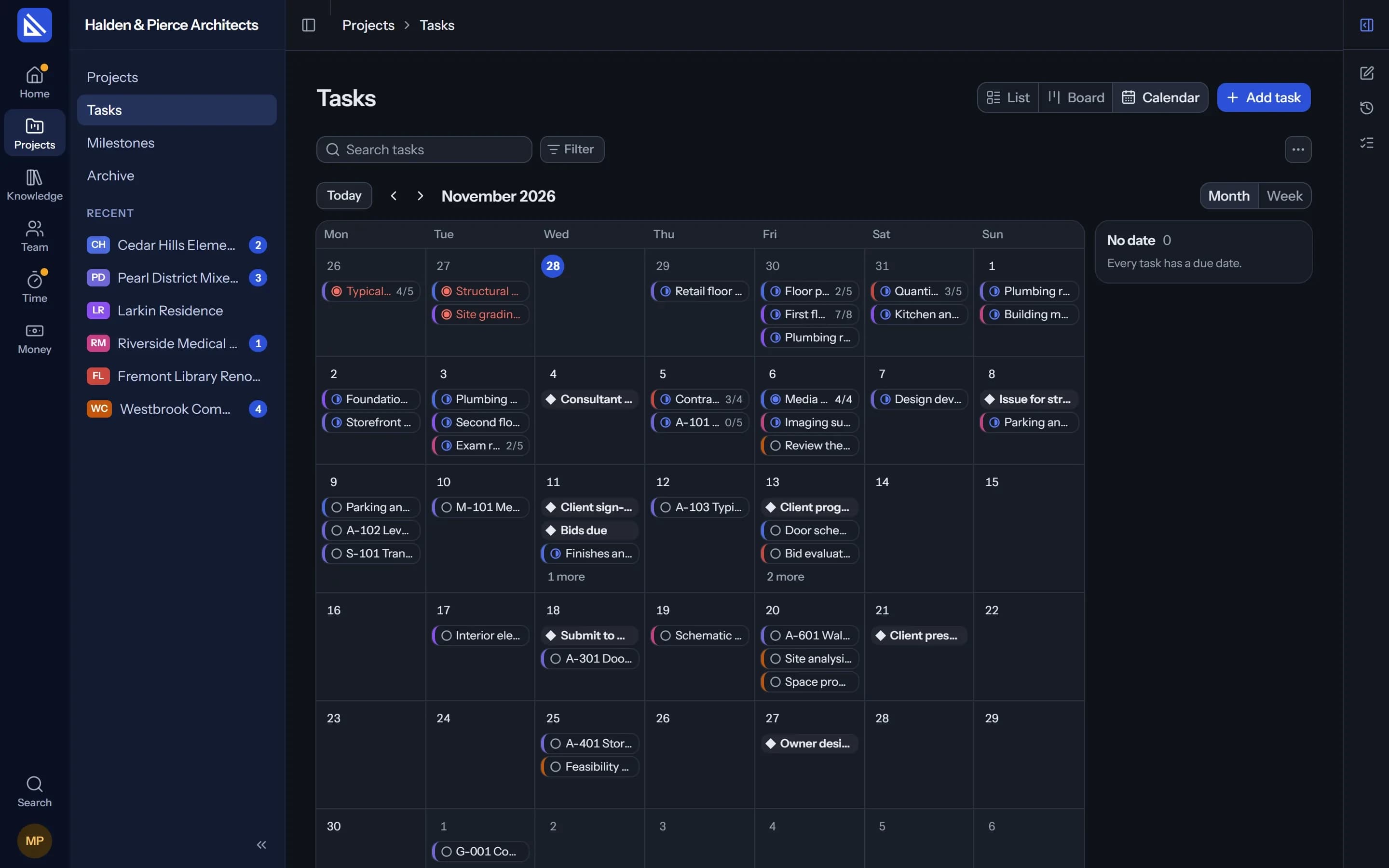
Calendar
Every due date in its week.
Tasks and milestones from every project on one calendar, or one project's on its own. Move a deadline by dragging it to another day.
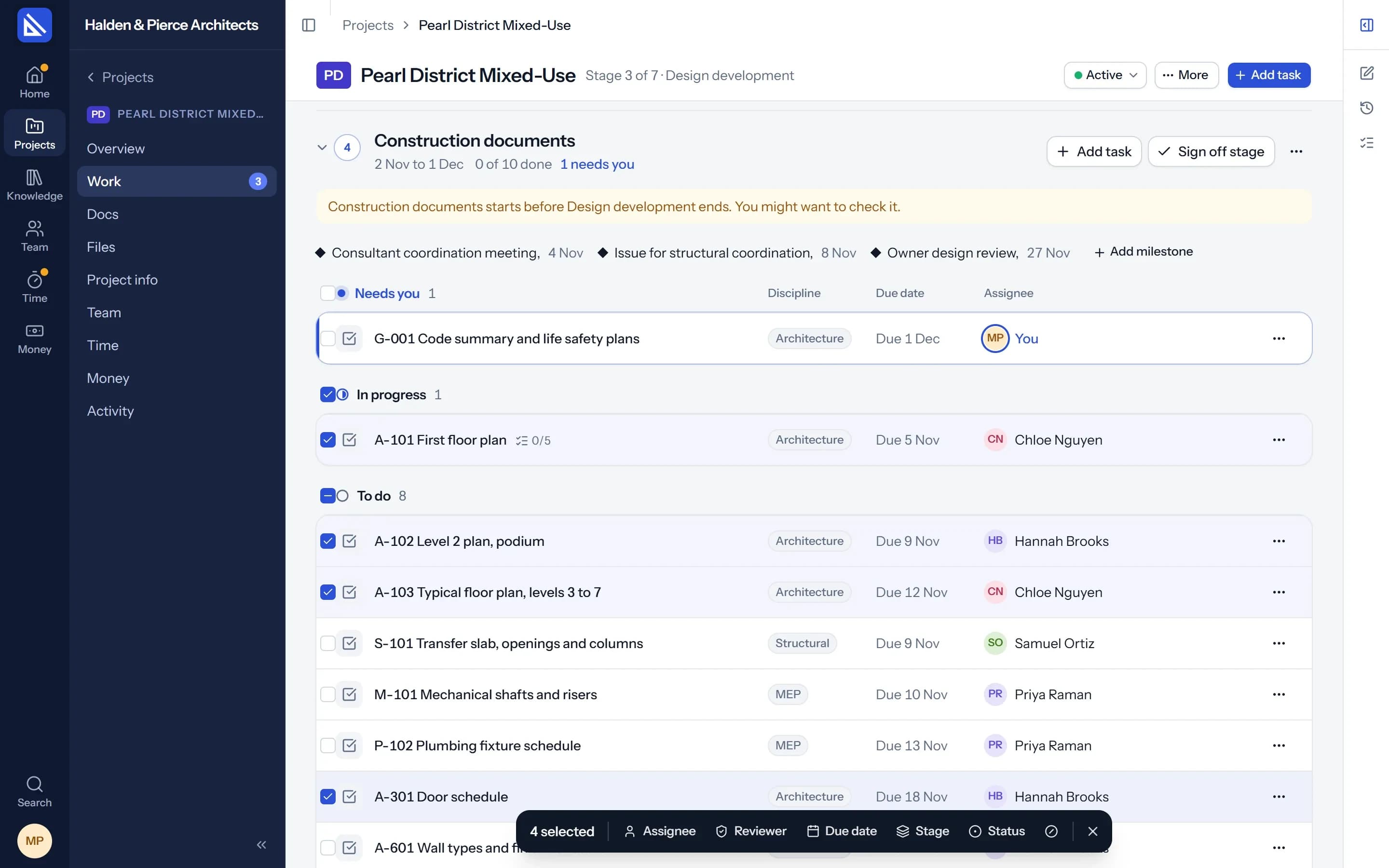
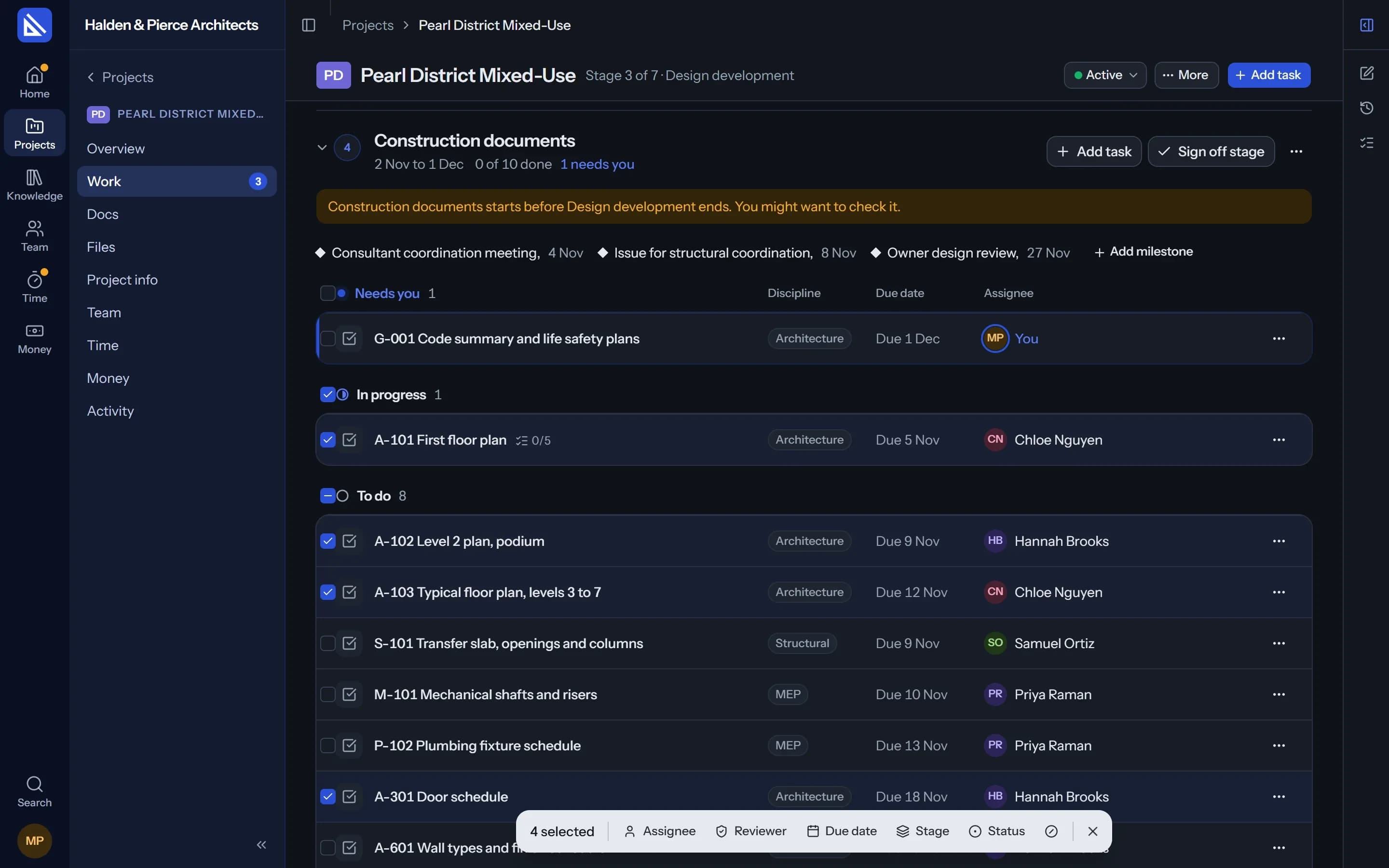
Change many at once
Reassign a whole stage in a few clicks.
Tick the tasks you want, or Shift-click a run of them, and change their assignee, reviewer, due date, stage or status together. Undo puts them back.
- Your agent too. Ask it to move every drawing task a week, and it changes them in one go.
Dashboard
What needs you, and how the firm is doing.
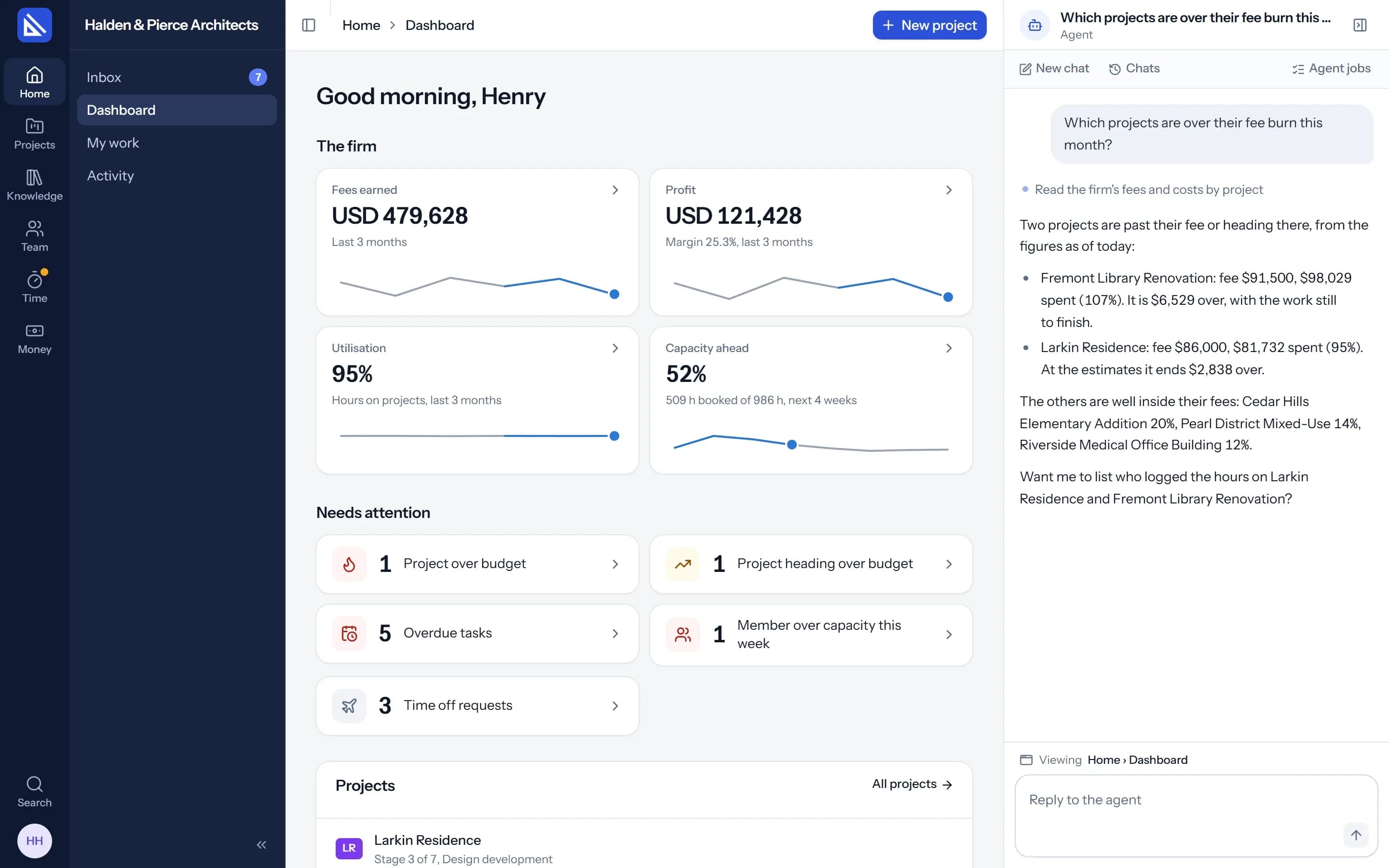
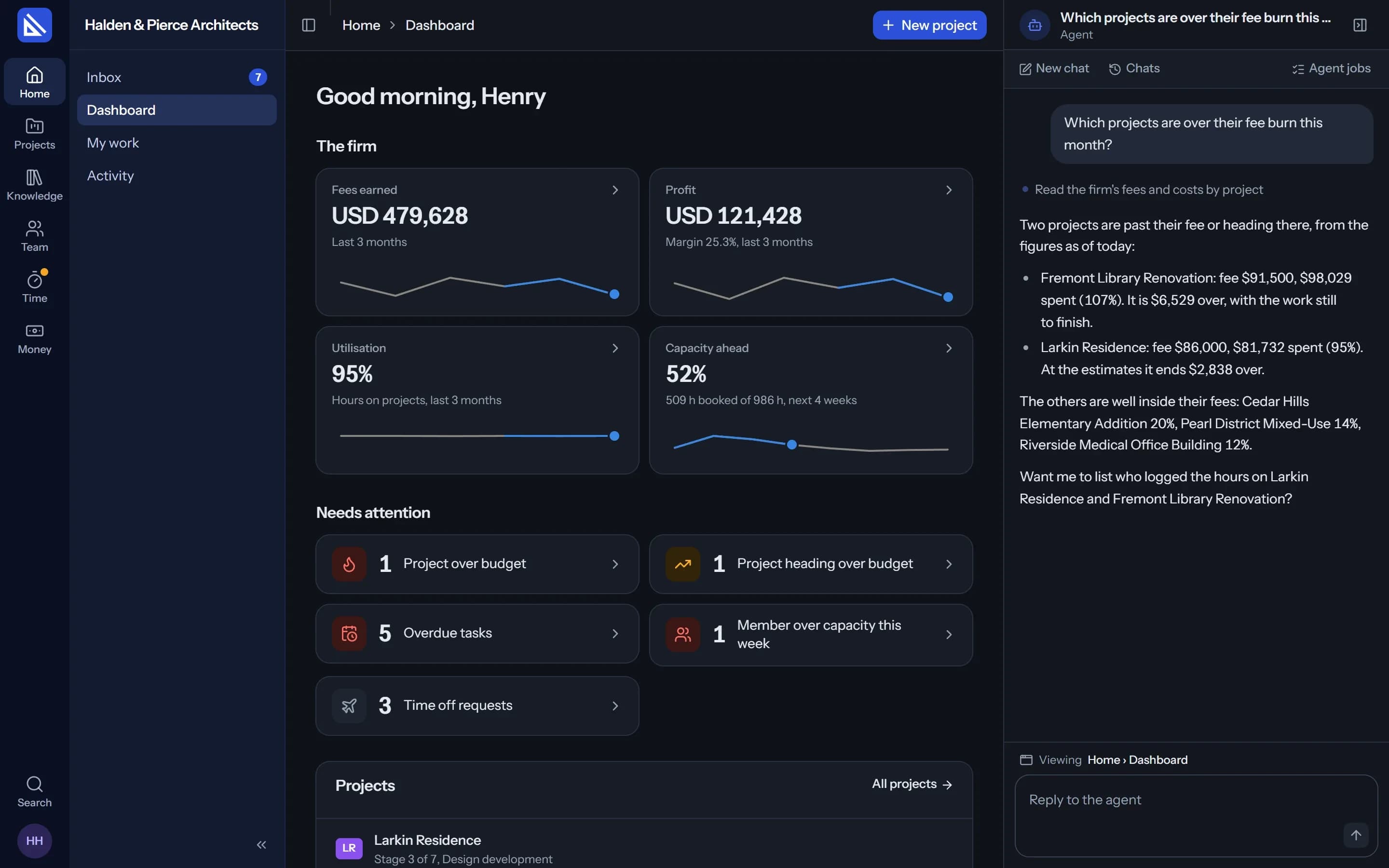
The Dashboard shows each person the parts they may see: the firm's figures for owners and managers, what needs attention, your projects, your week, the team this week and what your agent did.
- Figures with a trend. Fees earned, profit, utilisation and capacity ahead, each opening the detail.
- Needs attention. Projects over their fee, overdue tasks and reviews waiting, each a count that opens the list.
Charts
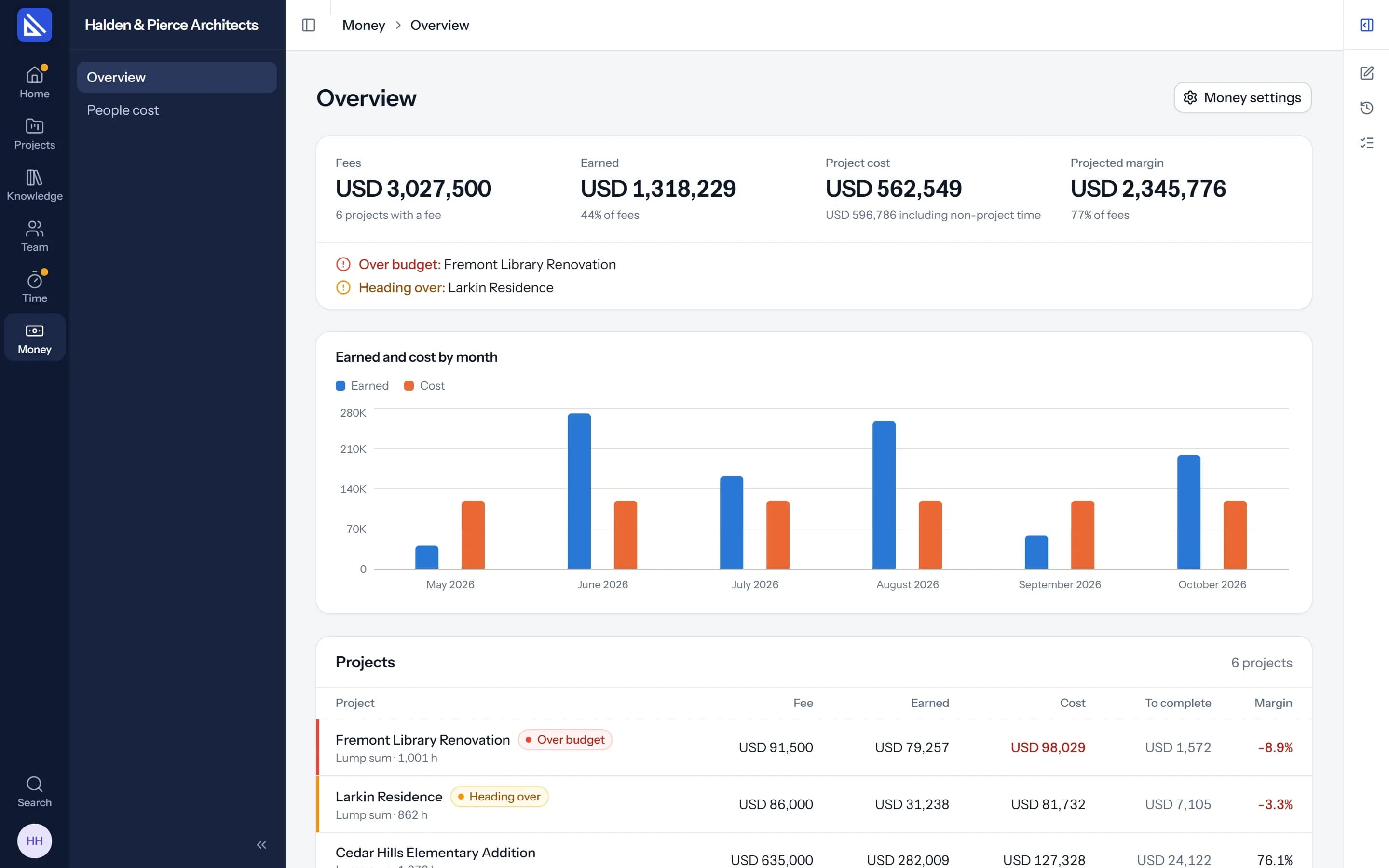
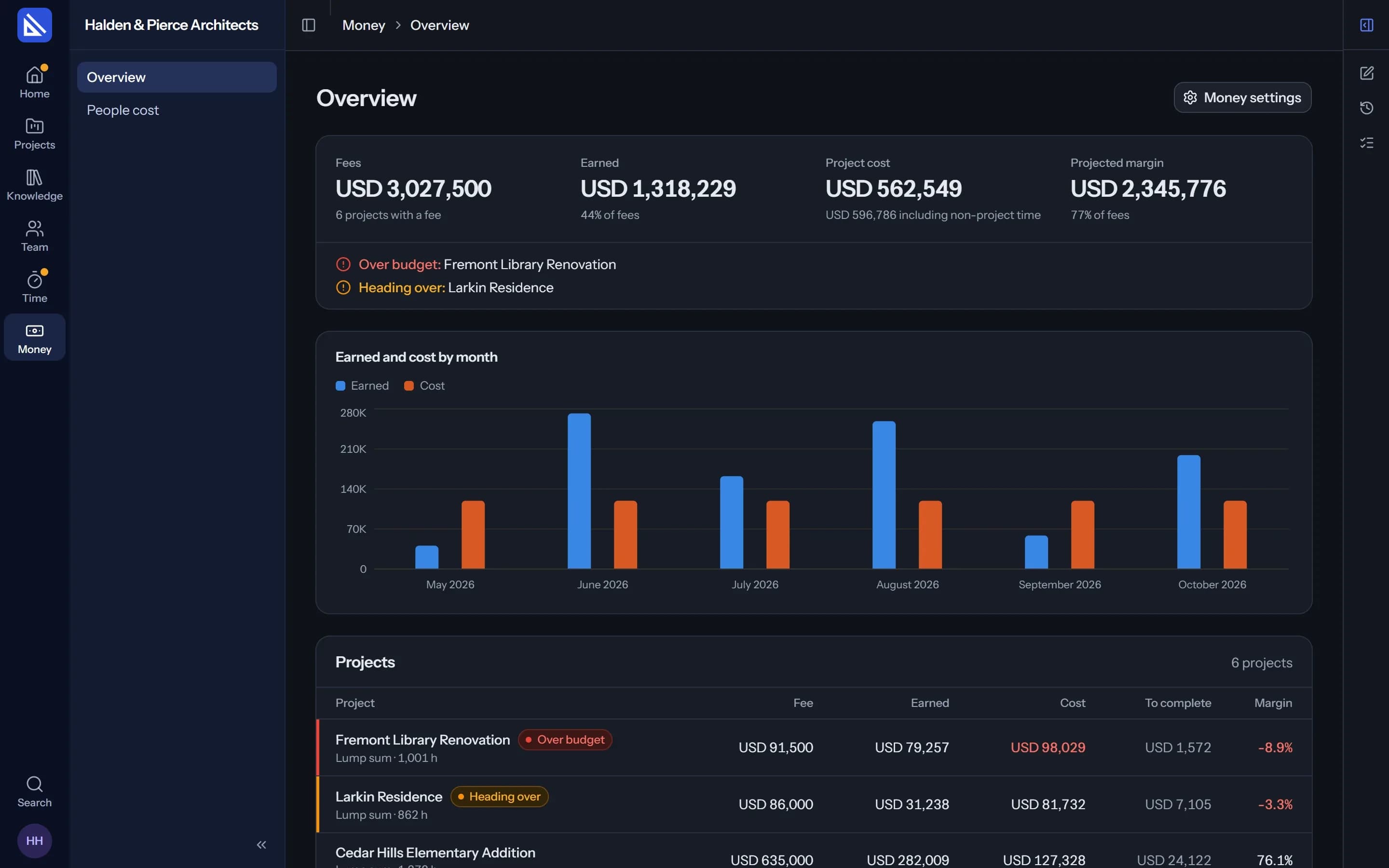
A chart over the table it sums up.
A project's fee burn and fee by stage, the firm's money by month, the team's capacity, hours by project or person, and tasks by status. One clear style throughout.
And where your own work lives.
My work
Everything given to you across projects, grouped by what needs you first, in any view.
All tasks
Every task of every project you can see, with the same filters and views.
Kept for you
Your filters, sorting and grouping are there the next time you open the list.
Questions
Who can move a task to Done?
Does everyone see the same Dashboard?
More of Arqiflow
Projects and tasks
Stages, tasks, reviews and checklists
Learn moreTemplates and import
Start projects fast, move in easily
Learn moreThe agent
An AI copilot for each person
Learn moreRevit
Walls, doors, rooms and stairs
Learn moreKnowledge
Your rules, standards and playbooks
Learn moreInbox and notifications
Mentions, reviews and email
Learn moreDocs and files
Minutes, drawings and models
Learn moreBoards
A live canvas for crits and precedents
Learn moreTime and money
Timesheets, fees and profit
Learn morePeople and time off
Team, workload and leave
Learn more
Bring your next project into Arqiflow.
Run your own projects and people in it free for 14 days, with no card. The agent comes with a plan.